Creating PDFs
Create artwork PDF sheets and reports
How to create and customise PDFs in Artopia.
Artopia lets you create professional PDF reports for any artwork in your art collection, either one at a time from the artwork detail page, or in bulk from the artwork list view. Use these documents for insurance records, provenance reports, sale proposals, or as a clean printed reference for a piece. Every PDF can include a branded header with your logo and contact details.
Choose what to include in your PDF
When you click "Create PDF" on an artwork detail page, a dropdown appears with five presets. Each one pre-selects a relevant set of fields for a specific purpose, but you can adjust the selection before creating.
Artwork sheet | The basics. Artist, title, year, medium, and dimensions. A general-purpose document for reference or sharing. |
Insurance record | Focused on acquisition and condition. Covers purchase price, purchase date, condition report, and location. Useful when providing documentation to an insurer or updating a fine art insurance policy. |
Provenance report | The full ownership and exhibition history of a piece. Designed for due diligence situations, sales, or loan requests where a complete provenance trail is required. |
Sale proposal | A clean document for prospective buyers. Before creating, you enter an asking price and select a currency. The price appears on the document; fields left empty are simply omitted. |
Each preset is a starting point, not a fixed template. After selecting one, you can add or remove any fields before creating the PDF.
What fields are included in an artwork PDF
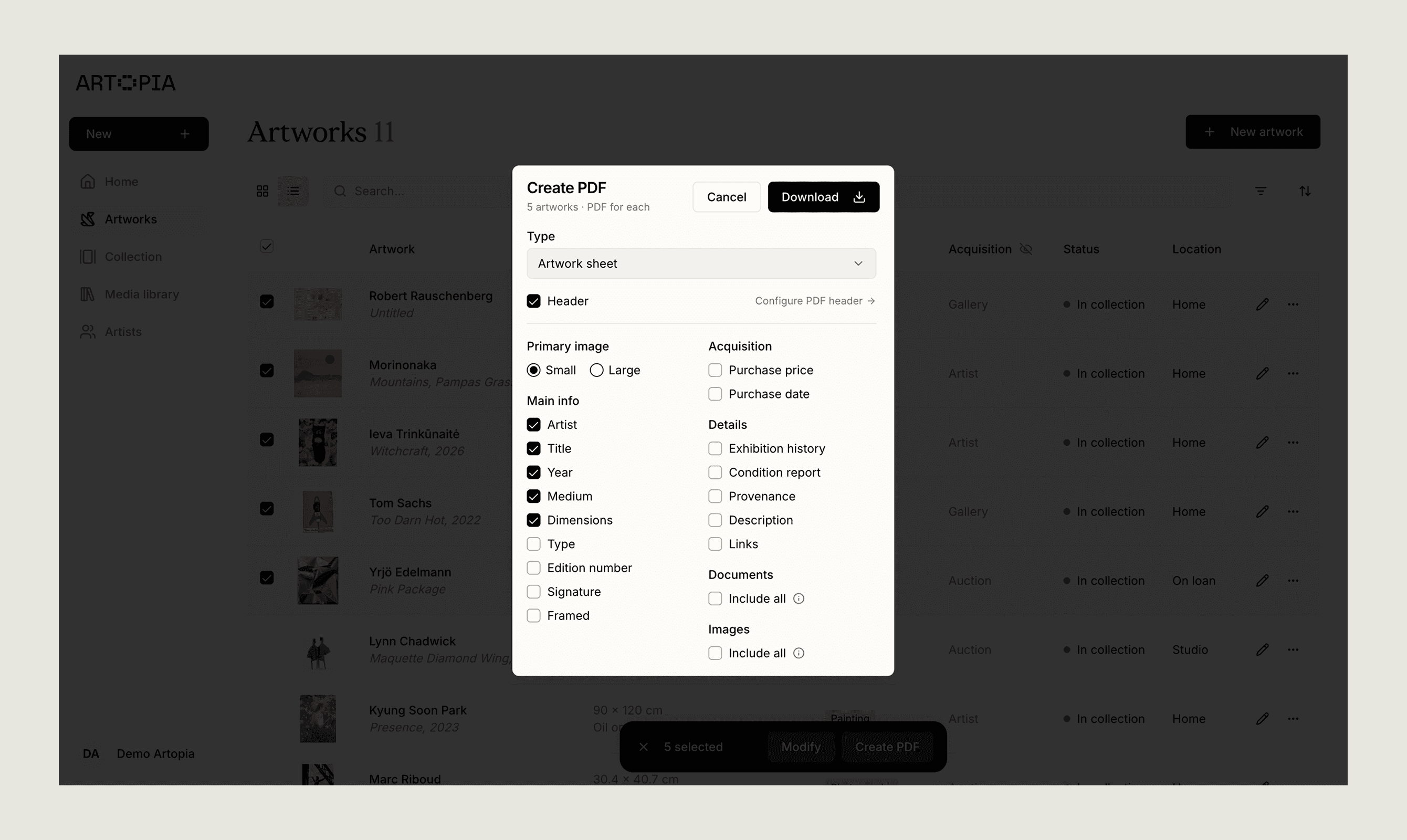
Fields are organised into five groups. You can select or deselect individual fields within each group before creating.
Primary image | Small or Large |
Main info | Artist, Title, Year, Medium, Dimensions, Type, Signature, Framed |
Acquisition | Purchase price, Purchase date |
Details | Exhibition history, Condition report, Provenance, Description, Links |
Documents and Images | Optionally include all attached documents and additional images |
If an artwork has additional images, they appear together on a dedicated page in a two-column layout. Attached documents each appear on their own page at the end of the PDF.
Setting up a branded PDF header
You can configure a reusable header that appears at the top of every artwork PDF you create. To set this up, go to your Profile page and look for the "PDF export header" section.
The header includes:
Logo | Upload a logo file. It appears on the left side of every PDF header. If you do not have a logo it can be left empty. |
Name | Organisation, gallery or your own name |
Contact email | Pre-filled with your signup email. Update it if you want a different address on your PDFs. |
Phone number | Only add if you want to include a phone number as a contact option. |
Website | Only add if you want recipients to be able to find you online. |
Once configured, the header renders automatically on every PDF you create. If you have not set one up, the header is omitted and the PDF starts directly with the artwork content.
This is useful if you share art collection documents with advisors, insurers, or buyers and want your contact details included without adding them manually each time.
Creating PDFs for multiple artworks at once
You can create PDF reports for multiple artworks at once from the artwork list view in Artopia.
Select the artworks you want to include using the checkboxes. Once more than one artwork is selected, a "Create" dropdown appears next to the Actions button. Choose a preset from that dropdown, then select one of two output options:
Separate PDFs: one file per artwork, created and downloaded sequentially. Each file is named after the artwork.
Combined PDF: all artworks in a single document. Each artwork starts on its own page.
If you choose the Sale proposal preset, a dialog appears before creation where you can enter an individual asking price for each artwork. Prices you leave blank are omitted from that artwork's document.
A note on performance
PDFs for multiple artworks are created in parallel to keep generation times reasonable. A batch of 10 artworks typically takes around 12 to 15 seconds. Generation time increases with the number of attached images, since each image is loaded as part of the rendering process.
Single artwork PDFs use a slightly higher render resolution than bulk creation. For most collection documentation purposes the difference is not noticeable.
Frequently asked questions
What types of PDF reports can I create for my art collection?
Artopia offers five presets: Artwork sheet, Insurance record, Provenance report, Sale proposal, and Custom. Each pre-selects relevant fields but allows full customisation before you create the document.
Can I create PDF reports for multiple artworks at once?
Yes. Select multiple artworks in the list view and use the "Create" dropdown to generate either separate files or a single combined PDF covering all selected works.
How do I create an insurance document for my art collection?
Use the Insurance record preset. It pulls purchase price, purchase date, condition report, and location into a single document you can share directly with your insurer.
Can I add my logo and contact details to artwork PDFs?
Yes. Set up a PDF header in your Profile page. Once configured, it appears automatically on every PDF you create in Artopia.
What is a provenance report in art collection management?
A provenance report documents the full ownership history, exhibition history, and chain of title for an artwork. In Artopia, the Provenance report preset pulls this information into a formatted PDF suitable for sales, loans, or due diligence.