Most collectors who come to Artopia already have records somewhere. A spreadsheet built up over years. A folder of scanned documents. A CSV export from another platform. The question is rarely whether the data exists. It is how to get it into a new system without losing anything, introducing errors, or spending a week on manual data entry.
The Artopia download template is designed for that moment. It is a pre-formatted file that shows you exactly how to structure your data, so you can bring everything across in one go rather than figuring out the format yourself.
This article explains what the template contains, who it is for, how to use it, and what happens during the import.
What the template is
The template is a spreadsheet file with eleven columns, one for each piece of information Artopia collects about an artwork:
Artist, Title, Creation Date, Medium, Height, Width, Depth, Unit, Purchase Price, Currency, Purchase Year
Using it means you are working in the right format from the start. Artopia reads these columns directly on upload, so there is no manual mapping or reformatting to do afterwards.
You can open the file in Excel, Google Sheets, or Apple Numbers, fill in your collection row by row, and upload it when you are ready. Download the template here.
Who it is for
The template is useful for three groups of people.
Collectors migrating from another system. If your collection is currently managed in a spreadsheet, another platform, or a mix of the two, the template gives you a clean target format to map your existing data into. Rather than copying records one by one into Artopia, you restructure the data once and import everything in a single step.
Collectors with large inventories. Adding artworks individually through the Artopia interface works well for small collections or new acquisitions. For collections of any significant size, bulk import is faster and less prone to the small errors that accumulate with manual entry.
Collectors with messy legacy data. If your existing records are inconsistent, the template helps you standardise before importing. Working through a CSV in a spreadsheet application is often easier than trying to clean data inside a collection management system.
How to access it
The template is available directly inside Artopia. Open the app, click the New button in the top-left corner, and select Import Artworks. In the window that opens, the first step is to download the template. Click the Download template button to save the file to your computer.
You can also download it directly here: Artopia art inventory template.
Once you have filled in your data, return to the same import window and upload the completed file in Step 3.
Filling in the template
A few fields have specific requirements worth knowing before you start.
Unit must be either cm or in. Any other value will return an error. If your existing records use a different abbreviation, update them before uploading. Artopia will automatically convert inch-based dimensions to centimetres during import, so you do not need to do that conversion yourself.
Currency must be a three-letter ISO code: EUR, USD, GBP, and so on. Symbols like $ or £ will not be recognised. If you are unsure of a currency code, a quick search will confirm it.
Artist names work as you would expect. If an artist already exists in your Artopia account, the imported artworks will be linked to that record automatically. If not, a new artist record is created. Names with particles, "Vincent van Gogh" or "Luc Tuymans", are recognised and handled correctly.
All other fields accept free text. Titles, mediums, dates, and prices can be entered as they appear in your existing records.
What happens during the import
After you upload the completed file, Artopia shows you a preview of everything that will be added before anything is saved. It is worth taking a moment to read through it.
The preview highlights anything that needs attention. If a title is missing, Artopia will note that it will use "Untitled" for that work. If a field contains something it cannot read, such as a currency code it does not recognise, that row will be flagged and will not be imported until you fix it.
Nothing is saved until you confirm. You can review every artwork, check which new artist records will be created, and address any issues before committing. If something looks wrong, cancel, correct the file, and upload again.
This means the import is safe to try even if your data is not perfectly tidy. Artopia will tell you what needs fixing before anything changes in your collection.
Using an AI tool to reformat existing data
If your existing inventory uses different column names or a different structure, the import window includes a ready-made prompt you can paste into ChatGPT, Claude, or any other AI assistant. Add your existing data alongside it, and the tool will reformat everything into the correct columns for you.
This takes a few minutes and is particularly useful if your spreadsheet has accumulated extra columns, inconsistent headings, or data in formats that do not match what Artopia expects. The reformatted file goes through the same preview step as any other upload, so anything that still needs attention will be flagged before it is saved.
How many artworks can you import at once
The template supports up to 1,000 artworks per import. For larger collections, you can run multiple imports one after another. Artopia will recognise any artist records already in your account across each upload, so nothing gets duplicated.
After the import
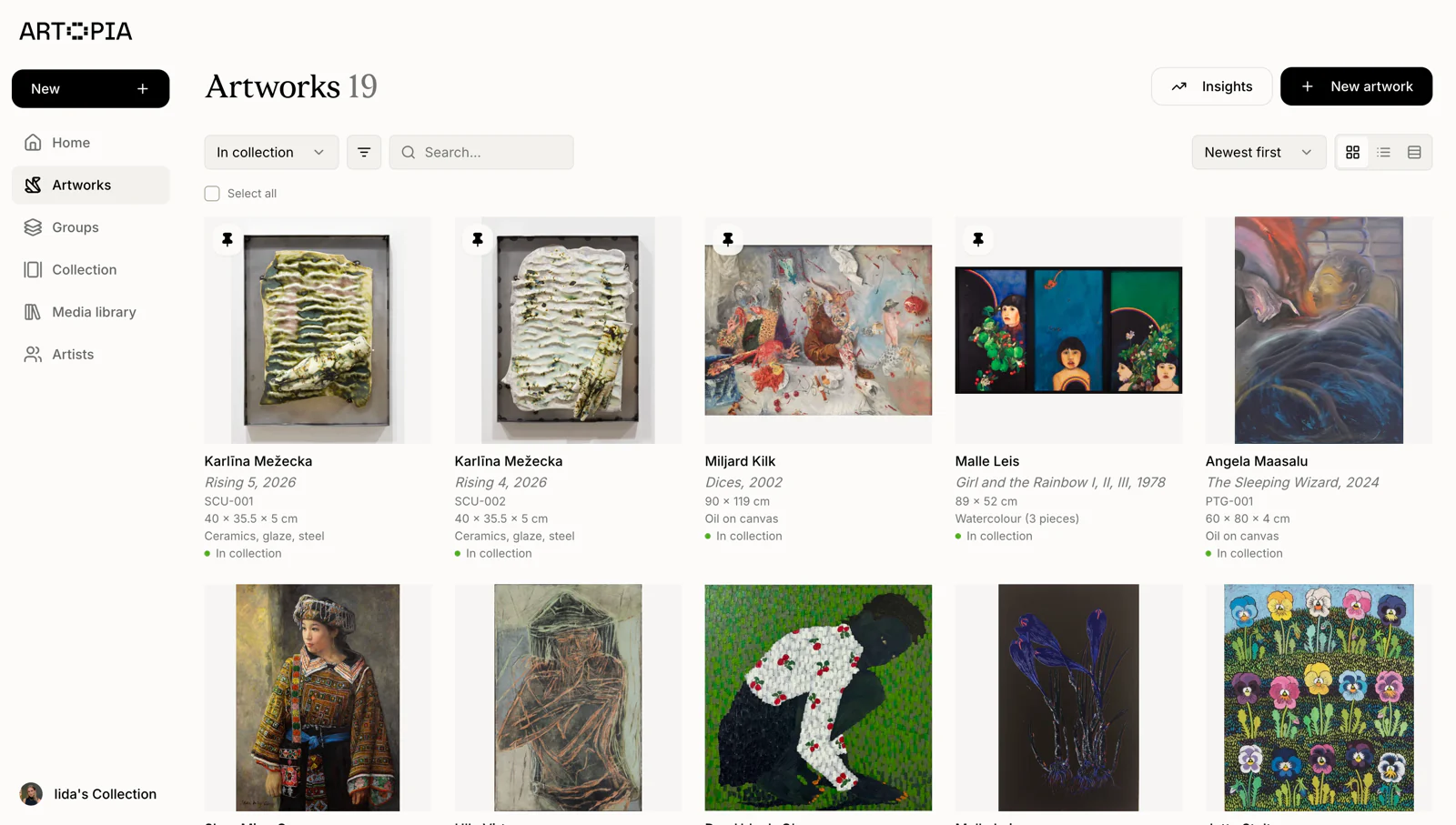
Once you confirm the import, your artworks appear in your Artopia collection. Each record will have the fields you provided through the template. From there, you can add images, documents, and any additional detail through the standard artwork record interface.
If you want to add images to multiple records at once, the bulk actions feature allows you to select multiple artworks and make changes across all of them in a single step. The guide on artwork records covers what each field in a record contains and how to build out a complete entry over time.
For collectors who want to bring in data from a specific platform such as Artlogic, Artwork Archive, or Art Record, the importing data page covers how to export from each of those tools before using the Artopia template.
Getting your collection into Artopia
Most of the difficulty in moving a collection to a new platform comes down to not knowing what format it expects. The template solves that. The columns are defined, the preview catches anything that needs fixing, and the whole process can be done in an afternoon even for a large collection.
If you have existing records in any format, download the template, fill in what you have, and upload. Artopia will guide you through the rest before anything is saved.