
June's biggest update changes how artworks move between collectors. Alongside it, you can now manage several collections from one account, your public collection got a new way to view individual works, and a few everyday details became easier to manage. Here is what is new.
Now you can transfer artworks directly to another collector
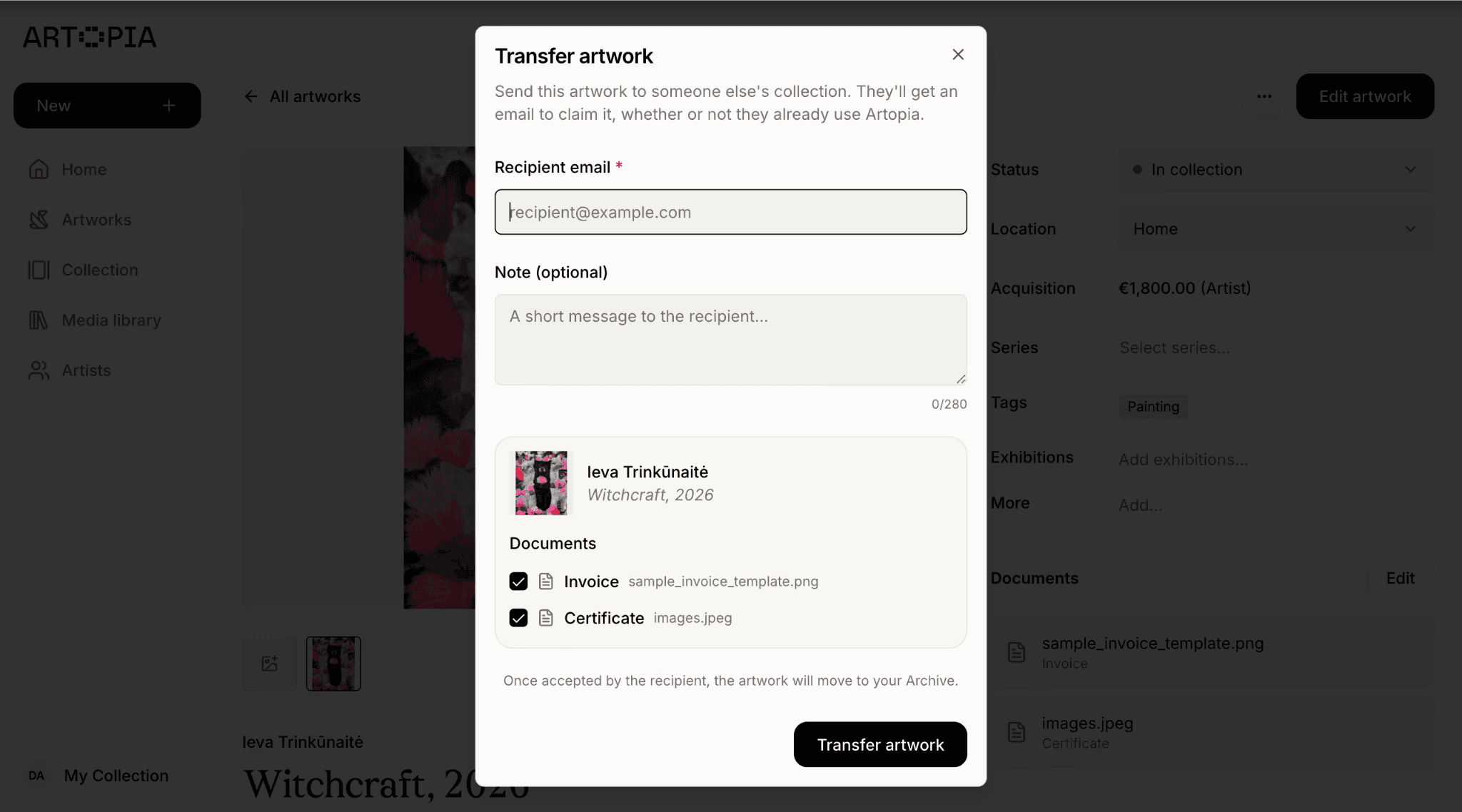
If you sell, gift, or otherwise pass on a work to someone else, you can now send it to them directly, with everything attached. It works whether or not they already have an Artopia account.
Open the artwork, choose to send it to another user, and enter their email. The title, artist, dimensions, medium, images, documents, and notes all travel with the piece. The recipient gets an email and an in-app notification, and can review exactly which files are included before deciding whether to accept or decline. If they do not yet have an Artopia account, the artwork is held for them and can be claimed as soon as they sign up.
This is useful because moving a work between collections has always meant rebuilding its history by hand on the receiving end: re-entering details, re-uploading images, re-attaching documents. A transfer keeps all of that intact.
Pending transfers can be canceled at any point and expire automatically if left unanswered, and both sides are notified at every step. Once an artwork is claimed, choosing which collection it belongs to now happens during Review Acquisition rather than at the moment of claiming, which keeps that step simpler.
For anyone who sells, gifts, or trades work between collections, this turns a tedious manual process into something that happens in minutes, without risking lost documents or mismatched details on either end. The artwork's history stays intact exactly where it left off.
Manage several collections from one account
If you keep separate bodies of work, perhaps a personal collection alongside a family one, or a few distinct groups you like to track on their own, you can now manage all of them from a single Artopia account and switch between them with one click from the sidebar.
Each collection has its own artworks, artists, and public page, with its own name, public URL, and PDF header set independently in that collection's settings. Switching between collections updates everything you see, from the artworks grid to your public page, so you are always working inside the right one.
This is useful for anyone managing more than one distinct group of works, including galleries, artists with several bodies of work, and advisors handling collections on behalf of more than one client, without needing a separate login for each.
A new detail view for each artwork on your public collection
Visitors to your public collection used to browse only the grid. Now, clicking into a piece opens a dedicated detail page for that artwork, with its own clearer header showing which collection you are browsing, and a tidier layout overall, with the title and year on one line and unnecessary labels removed. Page loading across the collection is also faster in general, so moving between the grid and an artwork feels instant, with your scroll position kept exactly where you left it.
Visitors can now also get in touch with you directly from your public collection through a one-click contact option, with a notification sent to your email. This is only available when a collection is public, so it will not appear on collections you have kept private.
For galleries, advisors, or fellow collectors browsing what you have on view, a clearer way to focus on one piece, and a direct way to reach you about it, means a genuine interest in a work is far less likely to stall out before it reaches you.
Custom locations for your artworks
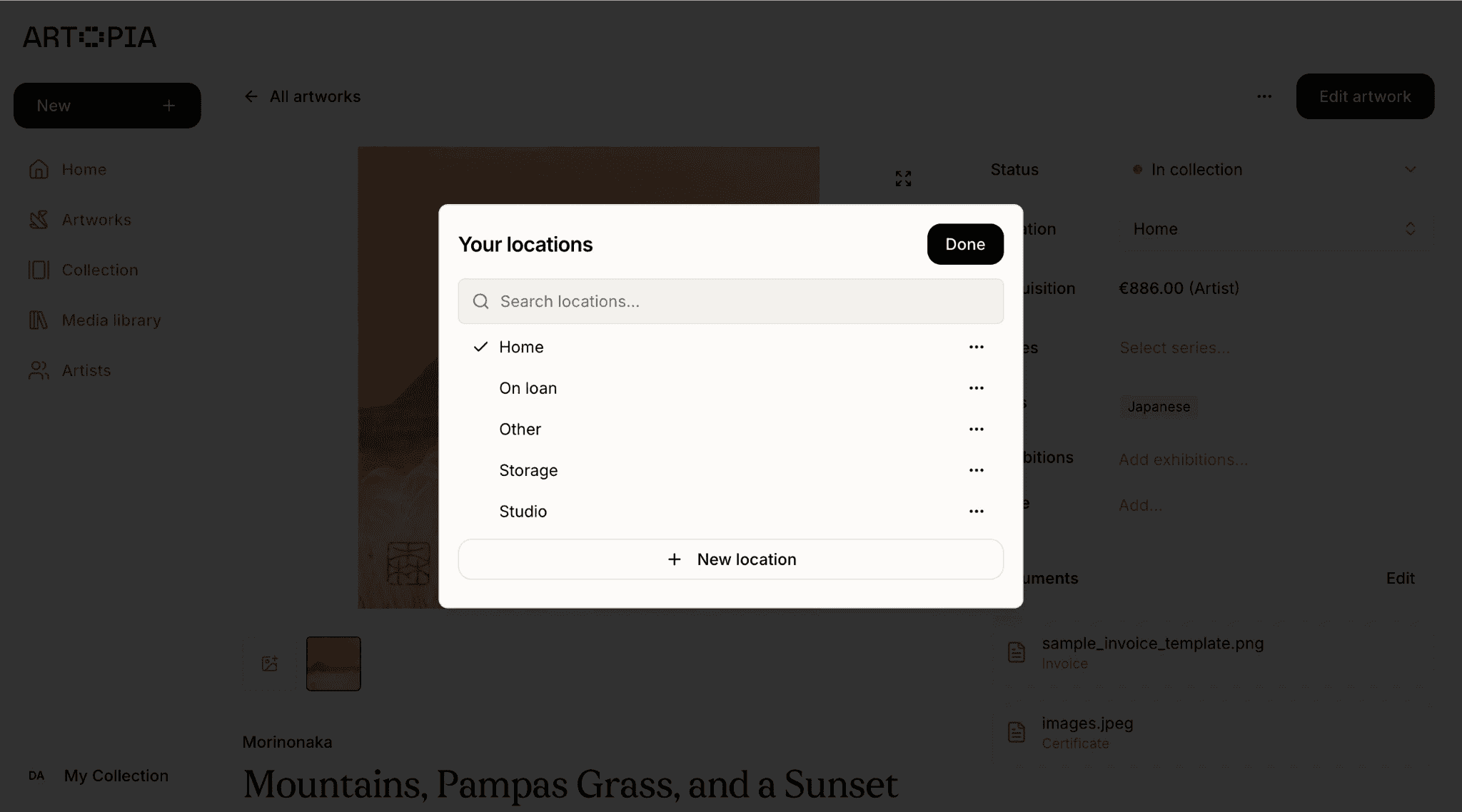
You can now create your own locations for where artworks live, alongside the built-in options of Home, Studio, Storage, On loan, and Other. The built-in locations are editable too.
Locations can be renamed or removed at any time from the artwork form or from a new "Collection's locations" section in Collection Settings, and the ones you use most often rise to the top of the list. Anything you had already set for existing artworks carried over automatically, so there is nothing to redo. Locations are one of the fields you can fill in on each artwork record.
This means your records can finally match how you actually think about your collection, rather than forcing every location into a handful of generic categories.
A public description and private notes for every artwork
Every artwork can now have a public description, visible to anyone viewing it on your public collection page. Use it to give context on a piece, the story behind it, or anything else you would want a visitor to know. Because it travels with the artwork's other details, this description also carries over automatically if you ever transfer the piece to someone else.
Separately, every artwork also has its own private notes, visible only to you. Use this for a condition check after a move, a conversation with a restorer, or anything else worth remembering that is not meant for public view. Paragraph spacing now shows as you type, so a longer note reads the way it will once saved.
Between the two, you have a public-facing way to tell a piece's story, and a private place to keep the small, ongoing details that matter to you but were never meant for a formal field, without needing a separate notebook or document to track them.
Frequently asked questions
How do I send an artwork to another Artopia user?
Open the artwork, choose the option to send it to another user, and enter their email address. The recipient will be notified and can review the included files before accepting. If they do not have an account yet, the artwork is held until they sign up and claim it.
Can visitors message me through my public collection?
Yes. Visitors can use a one-click contact option on your public collection page to message you directly, and you will receive an email notification. This option only appears when a collection is set to public.
Can I create my own locations for artworks?
Yes. Alongside the built-in locations, you can add, rename, and remove custom locations from the artwork form or from Collection Settings.
Can I add notes to an individual artwork?
Yes, and there are now two separate ways to do this. A public description can be added to any artwork and is visible to visitors on your public collection page, while private notes are visible only to you. The public description travels with the artwork if it is ever transferred to another user.
What is next
These updates focus on how collections connect to each other, whether that is passing on a single work, browsing a public collection, or simply knowing where everything is. We will keep building around those moments. You can also read the May product roundup to see what shipped last month.
If you have feedback on any of these features, reach us at app@art-opia.com.
Artopia is art collection management software for private collectors. It helps you catalog artworks, manage artwork documentation, track provenance and acquisition records, and share your collection publicly, all in one place. Start your art collection.
Published