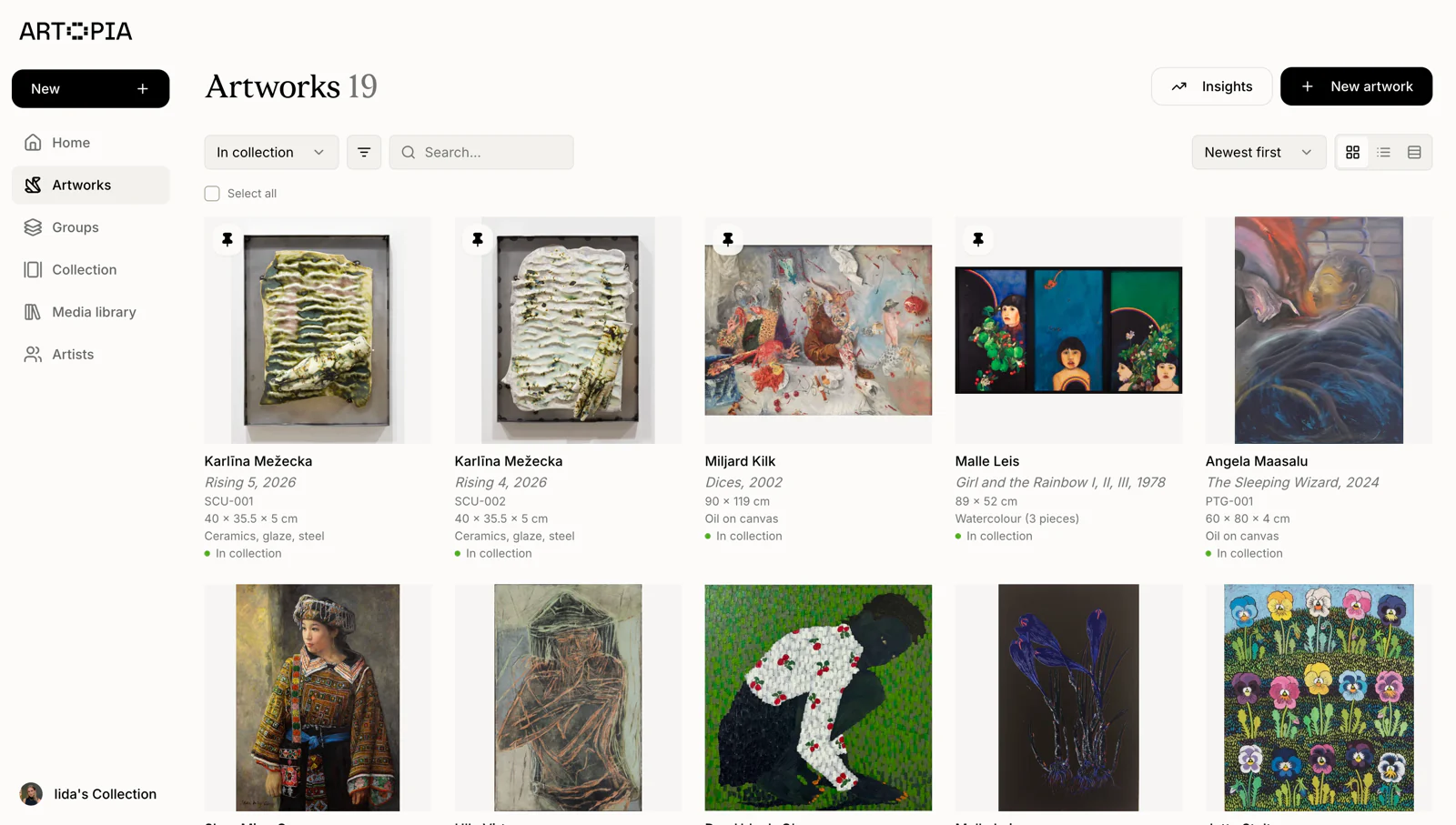
If your collection records are already in a spreadsheet, another platform, or an Excel file, you do not need to start from scratch. Artopia's import feature lets you bring your existing artwork data in as a CSV file and have it mapped to your collection in minutes.
This guide walks through how the import works, what to prepare, and how to use an AI assistant to reformat data that is not already in the right structure.
What the import covers
Each row in the import file becomes one artwork record in Artopia. The fields you can include are the core details you would capture for any catalogued work: artist, title, medium, dimensions, year, acquisition date, acquisition price, current value, location, and notes.
If your existing records use different column names or a different structure, that does not prevent you from importing. The AI-assisted mapping step below handles that.
Step 1: Download the Artopia template
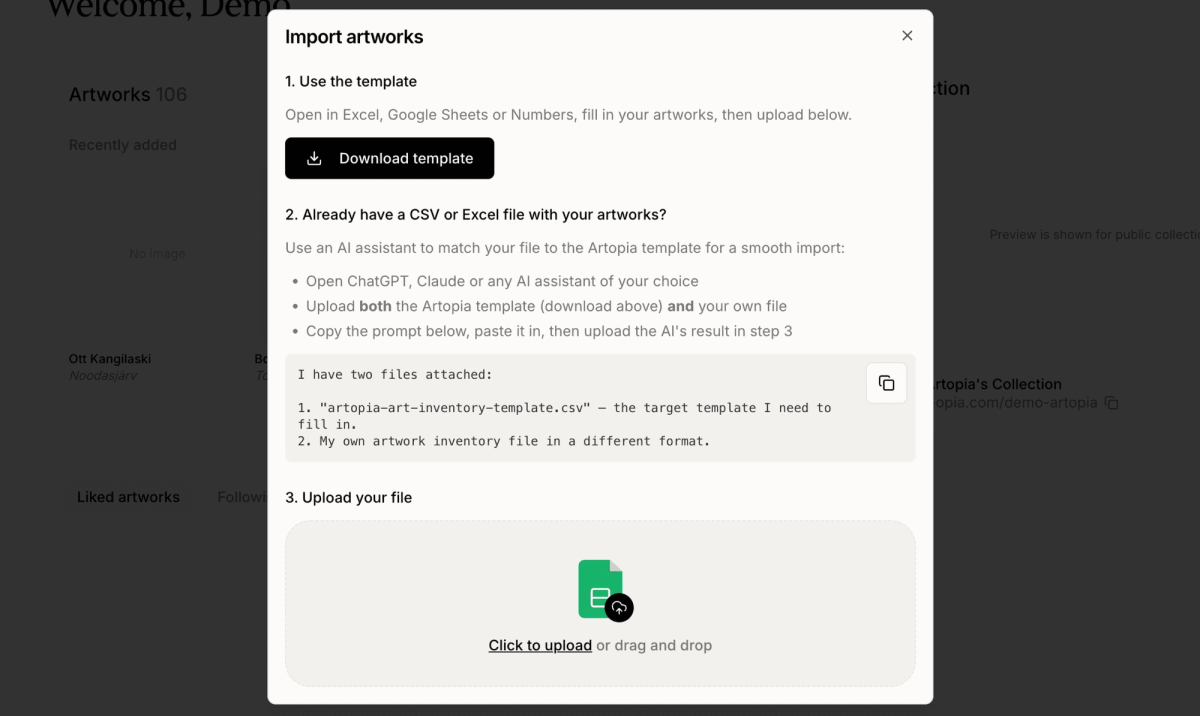
Inside the app, open the import dialog and download the official Artopia CSV template. The template defines the exact column names and order the import expects. Open it in Excel, Google Sheets, or Numbers.
If your inventory is already in a spreadsheet, keep both files open side by side. The goal is to get your data into the same column structure as the template.
Step 2: Map your data to the template
If your existing file uses the same columns as the template, you can copy the data across directly and skip to step 3.
If the columns do not match, for example you use "artwork name" instead of "title," or your dimensions are in a single column instead of separate height and width columns, the easiest approach is to use an AI assistant to do the reformatting.
The import dialog in Artopia includes a ready-made prompt for this. Copy the prompt, open ChatGPT, Claude, or any AI assistant of your choice, upload both the Artopia template and your own file, and paste the prompt. The AI will reformat your data to match the template structure and return a file you can use directly.
This approach works well for most inventory files, including exports from Artwork Archive and other art collection management platforms.
Step 3: Upload your file
Once your data is in the template format, upload the CSV in the import dialog. Artopia will process the file and show you a review screen before anything is saved.
Step 4: Review before importing
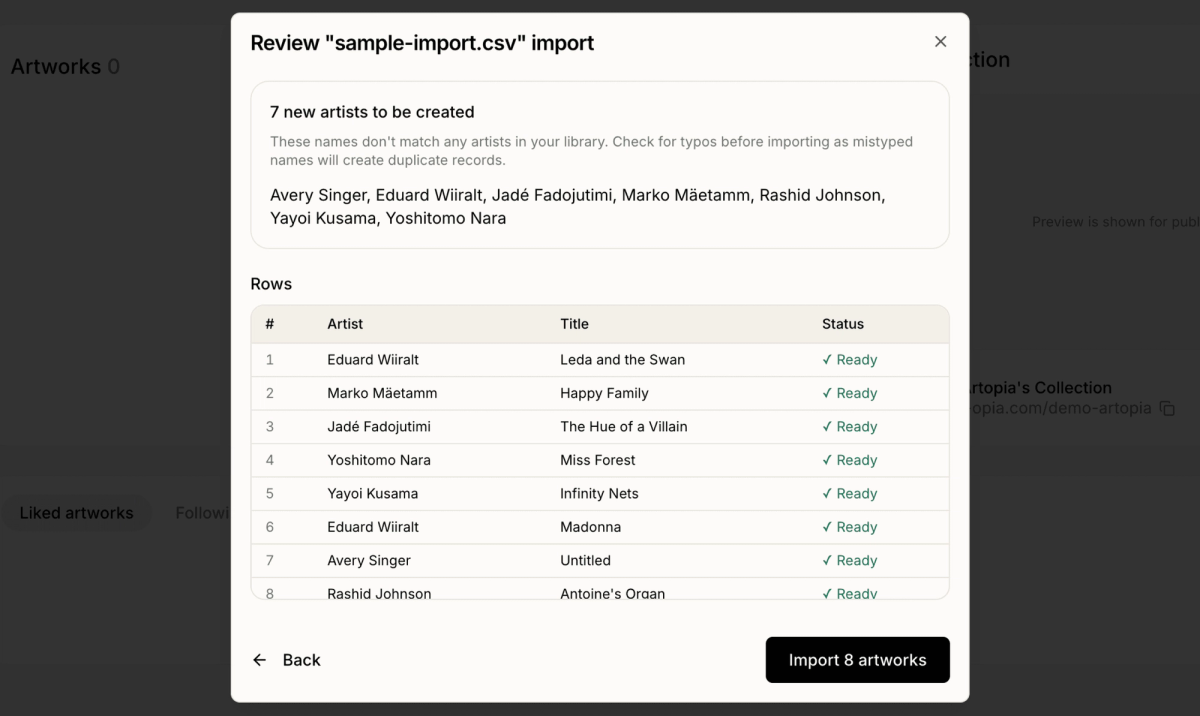
The review screen shows two things. First, it lists any new artists that will be created: names in your import file that do not match anyone already in your Artopia library. Check these carefully: a typo in an artist name will create a duplicate record, and it is easier to fix before importing than after.
Second, it shows every artwork row with its artist, title, and import status. All rows marked "Ready" will be created as artwork records when you confirm. Rows with errors are flagged so you can go back and correct them.
When everything looks correct, click "Import artworks" to complete the process.
Building out your art catalogue after import
Imported artworks appear in your collection with all the fields from the CSV populated. You can then open individual records to add images, documents, condition notes, provenance details, and anything else that was not part of the CSV. The import handles the data entry work. The remaining steps are adding the media and documentation that belongs with each record.
Migrating from Artwork Archive, Artlogic, or another art collection management platform
If you are moving from Artwork Archive, Artlogic, or another art collection management tool, the import is the quickest route to getting your records into Artopia. Export your data from your existing platform as a CSV, use the AI mapping step to reformat it, and import.
If you would prefer help with the migration rather than handling it yourself, reach out at hello@art-opia.com and the Artopia team will take care of it.
Frequently asked questions
What file format does the import accept?
CSV files. If your data is in Excel or Google Sheets, export or download it as a CSV before uploading.
Can I import from Artwork Archive?
Yes. Export your records from Artwork Archive as a CSV and use the AI mapping step to reformat the columns to match the Artopia template.
What happens if I have duplicate artist names?
The review screen shows all new artists that will be created. If an artist in your file is spelled differently from how they appear in your library, they will show up as a new entry. Review the list before confirming and correct any typos in your CSV.
Is there a limit on how many artworks I can import?
The import handles large files. Your account plan determines the total number of artwork records you can hold. See pricing for details.
Can I import the same file twice?
Importing the same file a second time will create duplicate records. If you need to re-import, delete the original records first.
What if my file has columns the template does not include?
Extra columns are ignored. Only columns that match the template fields are imported. You can add additional information to individual records after importing.
Ready to bring your collection into Artopia? Get started for free, no credit card required.